
How to Use Our Free Online Video Downloader
With Aquapp Free Online Video Downloader, downloading videos from the web becomes easy and fast. This way, you can conveniently save clips from educational videos, movies, or social media, downloading or installing anything else. You can get quick and easy results using popular video-sharing sites like YouTube, Instagram, and Dailymotion. With its hassle-free user interface and effectiveness, anyone can easily access and store downloaded videos.
How to Download Videos Online?
The tool allows you to download videos straight from the internet using just their URL, and you do not need any other tools. Since this tool works with several media platforms, it helps you easily access your favorite content. If you come across a viral video or a lesson, you can store it on your device with just a few easy steps. Read on to discover an easy way to download videos using only the link they are on.
Step 1Copy the YouTube Video Link
First, start your browser and go to the YouTube site. Find the video you'd like to download in your search. Once you have the URL, copy it to your browser's address bar.
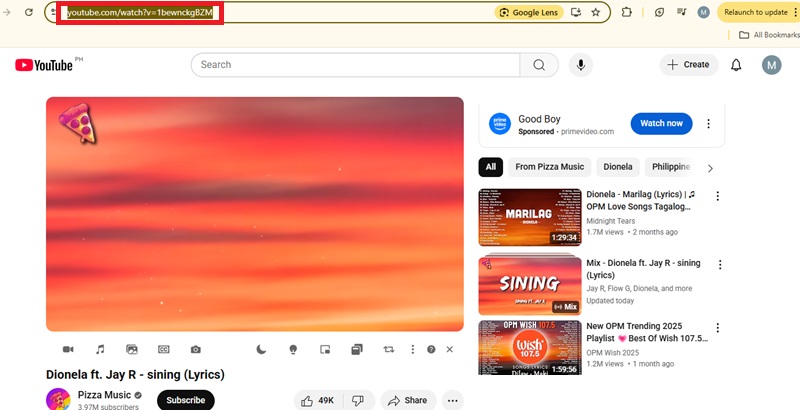
Step 2Paste the Link into the Downloader
Choose the Free Online Video Downloader page to get started. After copying the URL, right-click in the input field and pick "Paste" or press Ctrl + V. When you finish, hit the "Download" button.
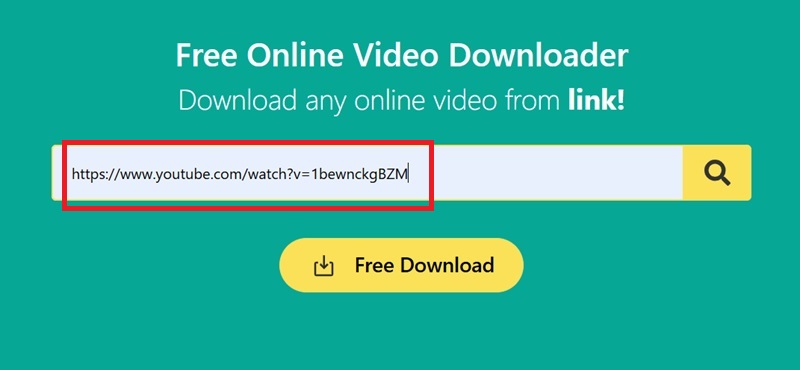
Step 3Wait for Video Analysis
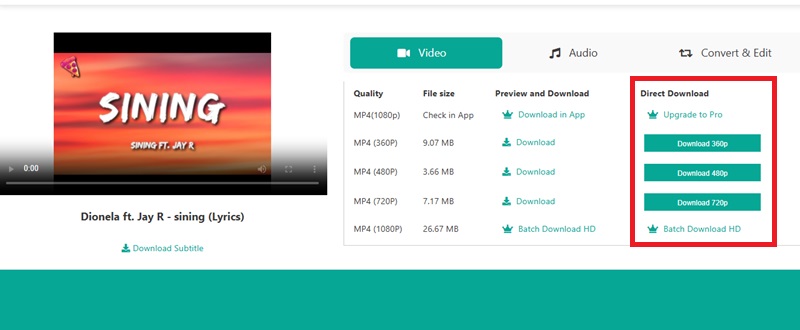
Once the link is entered, the tool will show a thumbnail and the video title, appearing as a preview. At this stage, you'll see several resolution and format choices. You can pick between two download options: Preview & Download and Direct Download.
Step 4Download the Video
Method 1. Use the Preview & Download Method
If you choose Preview & Download, clicking the "Download" button will launch a new tab where the video starts playing. Click the three-dot icon in the corner of the video player and select "Download" to save it locally.
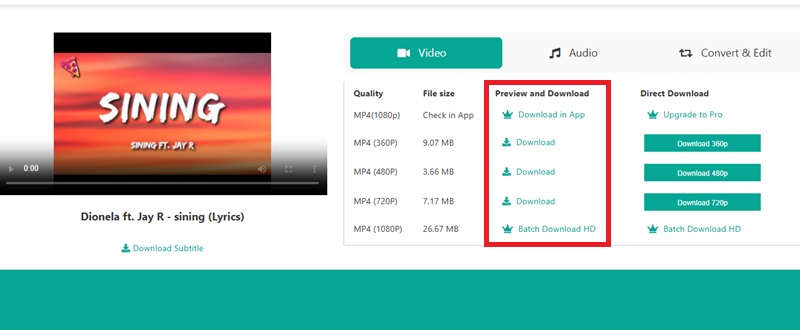
Method 2. Use the Direct Download Method
If you pick Preview & Download, the "Download" button will take you to a new page, and the video will play immediately. In the corner of the video player, click the three dots and select "Download" to put it on your device.
Guide for Downloading Videos from Specific Platforms
Download Video from Bilibili
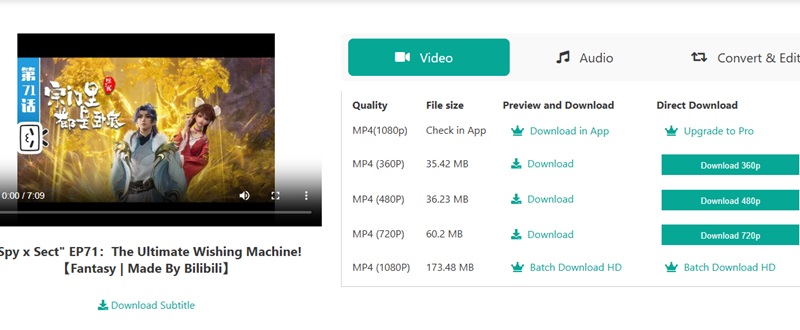
Bilibili videos can be downloaded easily using the Free Online Video Downloader. First, open the video you want to save on Bilibili and copy its URL from the address bar in your browser. The next step is to paste the copied URL into the downloader's spot on the Aquapp site. You will be shown a list of video resolutions following the link analysis. The "Download" link is listed below 720p or a related resolution choice. Press the preview button in a new tab and click "Download Now" in the three-dot menu to store the video on your device.
Download Video from Vimeo
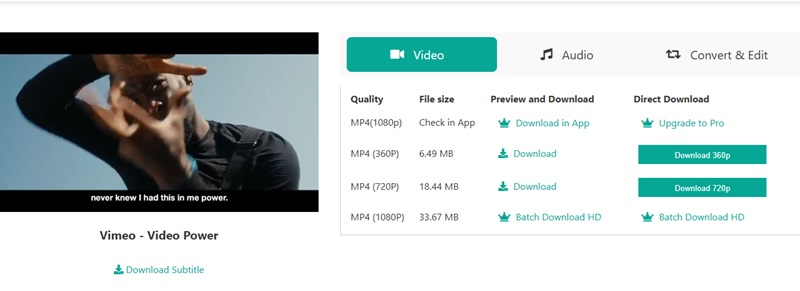
If you wish to save a high-quality Vimeo video, the method is as easy. Go to Vimeo, look for the video you want, and obtain the page URL. Go back to the tool and paste the Vimeo link into the place where you are prompted. You can do this by clicking the search or download icon. After a little time, you will see several kinds of files and a list of resolutions. When you find the format you want, press the related "Download" button to get the video on your computer.
Download Favorite Clips from Popular Sites
To download from TikTok, Instagram, or Facebook, users must first see a preview to confirm the video can be accessed. Grab and memorize the URL of the video you want to download as your first step.
Put the link in the online downloader and press the button to scan. Most of the time, the system will move you to view the file's preview page. In this step, click the three-dot icon after the video plays and then pick "Download" from the menu. This approach allows you to download videos not always available to watch online.
How to Search and Download Videos Online
If you do not have a direct link, review the available courses. No problem. A special Free Online Video Downloader search tool lets you identify and fetch videos with just some keywords. Whatever you're looking for, such as music videos, documentaries, or trending content, you quickly find it by searching with the artist, genre, or other terms all in one place.
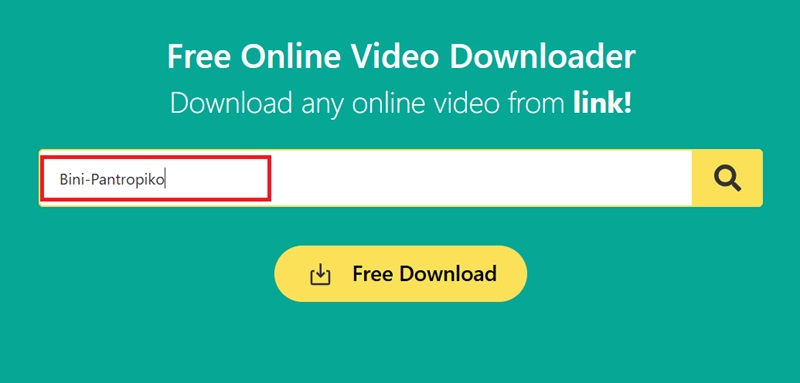
Step 1 Enter Keywords or Video Name
Go to the main interface of the Aquapp Free Online Video Downloader. In the search bar, type in a relevant keyword, video title, or the name of an artist or channel. Then, click the search icon to begin scanning for matching content.
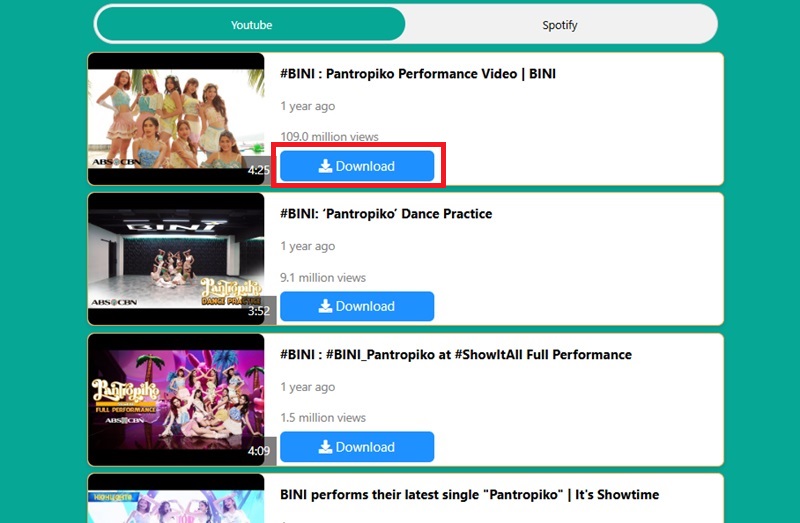
Step 2 Review and Choose from Search Results
Soon after typing your request, the results that match your search will be displayed. Check the titles and click the button "Download" beneath each one you want. You will be given a list of download choices and can select the best option.
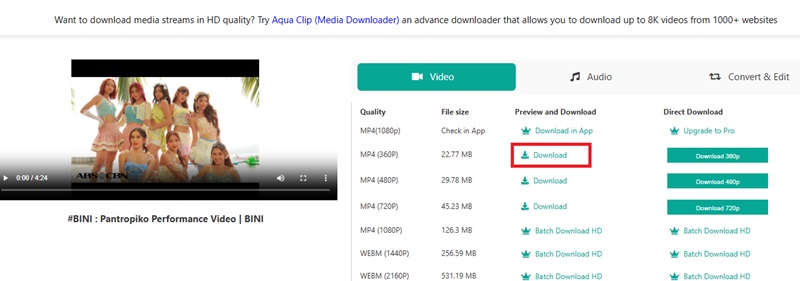
Step 3 Choose Format and Download the Video
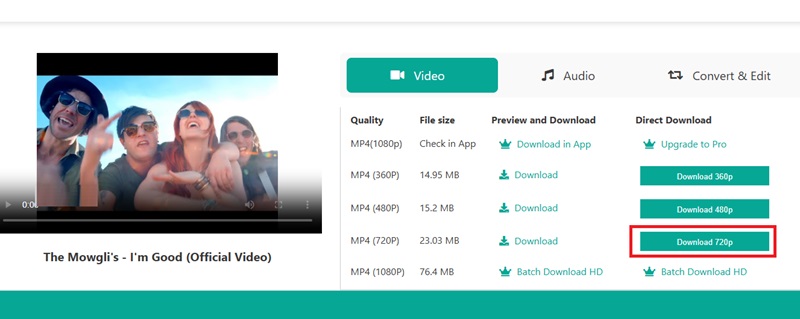
Once you have chosen a video, you will see download options for different resolutions and video formats. You can watch the video first or click on the direct download button if it is available. Select a format that meets your expectations and press the "Download" button next to it to start saving the video onto your device.
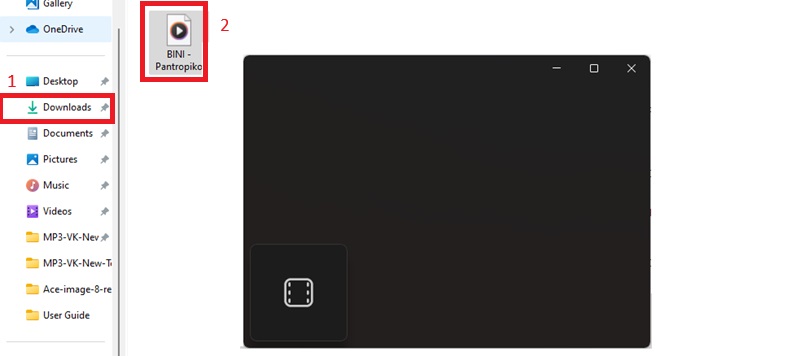
Step 4 Locate and Play the Downloaded File
When the download is done, go to the top-right of your browser to check the download's status. Open your computer's file browser, select the file, and double-click on it. Your player will open it for you to watch or listen to.
How to Convert and Edit Downloaded Videos
Once you save your videos, the app offers simple ways to alter and reuse your content. Whether you want to change the format or edit your document quickly, the online tool provided by the service is very accessible and easy to use. All your tasks can be completed through your browser without additional software.
Edit Videos Online with Ease
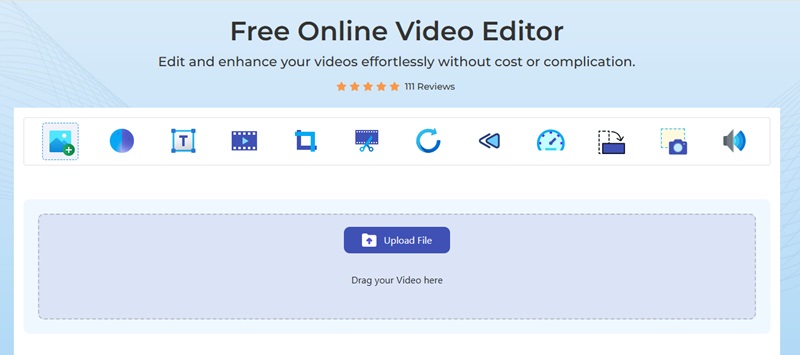
Want to adjust your video before sharing it or saving it? Pressing "Open in Editor" will open the video editing page online. You might edit sections you do not want, change the frame width, alter the picture's rotation, or reverse how the video plays. With the editor's help, you can also add watermarks and set the video's playback speed. All you have to do is load your video and use the available tools to make it meet your requirements.
Convert Videos to Different Formats
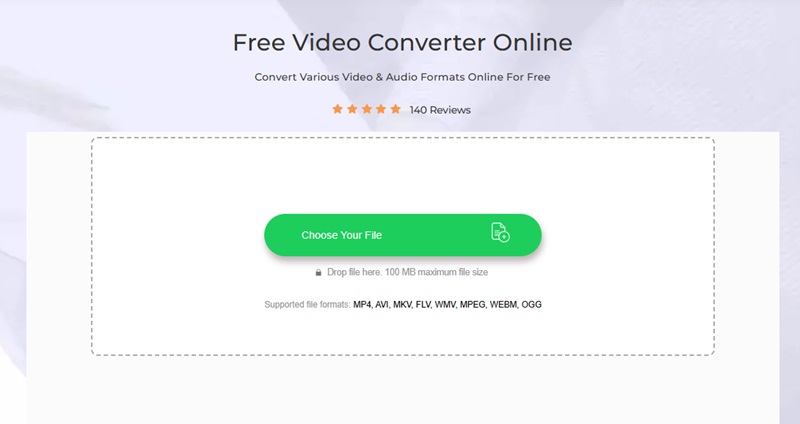
To switch the video to another format or reduce its size, use the "Open in Converter" link. After that, press the "Choose Your File" option to upload your video. The converter works with many types of videos, such as MP4, AVI, WMV, MKV, FLV, WEBM, and MPEG. When you pick your format, press "Convert" and wait until the process is finished. Your file will be downloadable in the new format.